 Coldfront
How to trade on Hyperliquid with a hardware wallet
Your cold wallet signs once, on Hyperliquid's API page, to authorize an API wallet. Coldfront keeps that API wallet's key encrypted and gives it to the official Hyperliquid app while unlocked, so you trade with the device unplugged. Withdrawals still need the cold wallet.
How a cold wallet works with Hyperliquid
Hyperliquid is used through its website. To use it with a Ledger, Trezor or another cold wallet, you connect the device through a browser wallet such as MetaMask or Rabby. The app then asks the device to sign when you enable trading, withdraw or move funds, and again when you enable trading in another browser.
That keeps your funds safe, but it also means a browser wallet connected to a trading site, and the device nearby whenever the app asks for it. A connected wallet is also how most scams on Hyperliquid start: a fake site, a "Connect wallet" prompt, one signature. In August 2026 a trader lost $550,000 after a fake Hyperliquid search ad led to a drainer site.
What an API wallet is
Any Hyperliquid account can authorize extra signing keys called API wallets (also called agent wallets). An API wallet can place, change and cancel orders for your account. It cannot withdraw, send funds, transfer between accounts or approve other wallets: those always need your cold wallet. Each API wallet lasts up to 180 days, and you can revoke it at any time on the API page.
What the cold wallet still signs
- Authorizing the API wallet, and renewing it (up to every 180 days).
- Withdrawals.
- Moving funds between accounts.
Step 1: Authorize an API wallet
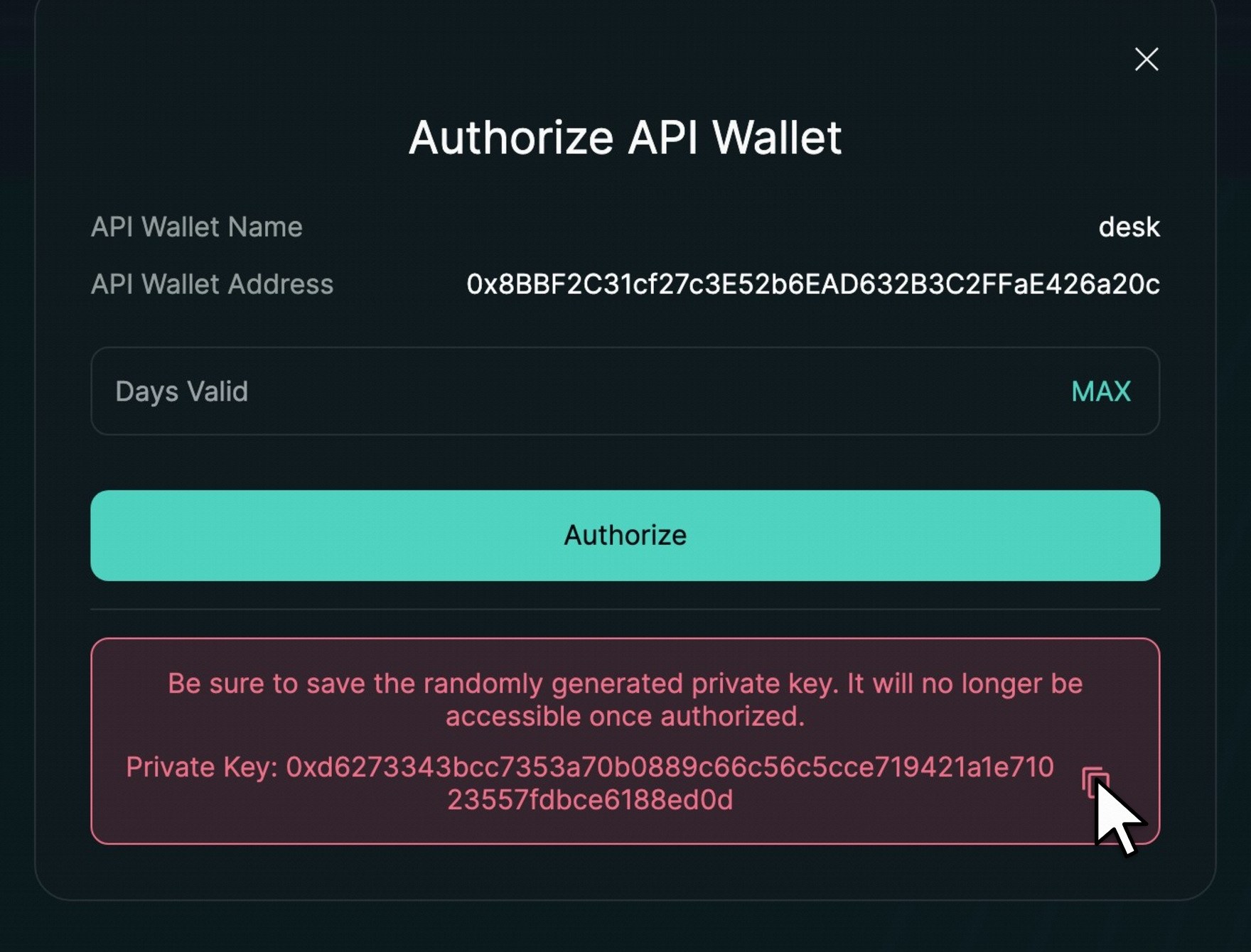
Open app.hyperliquid.xyz/API with your cold wallet connected. Enter a name, press Generate and copy the private key, which is the API key (it is shown once). Then press Authorize and confirm on the device.
Step 2: Store the API key in Coldfront
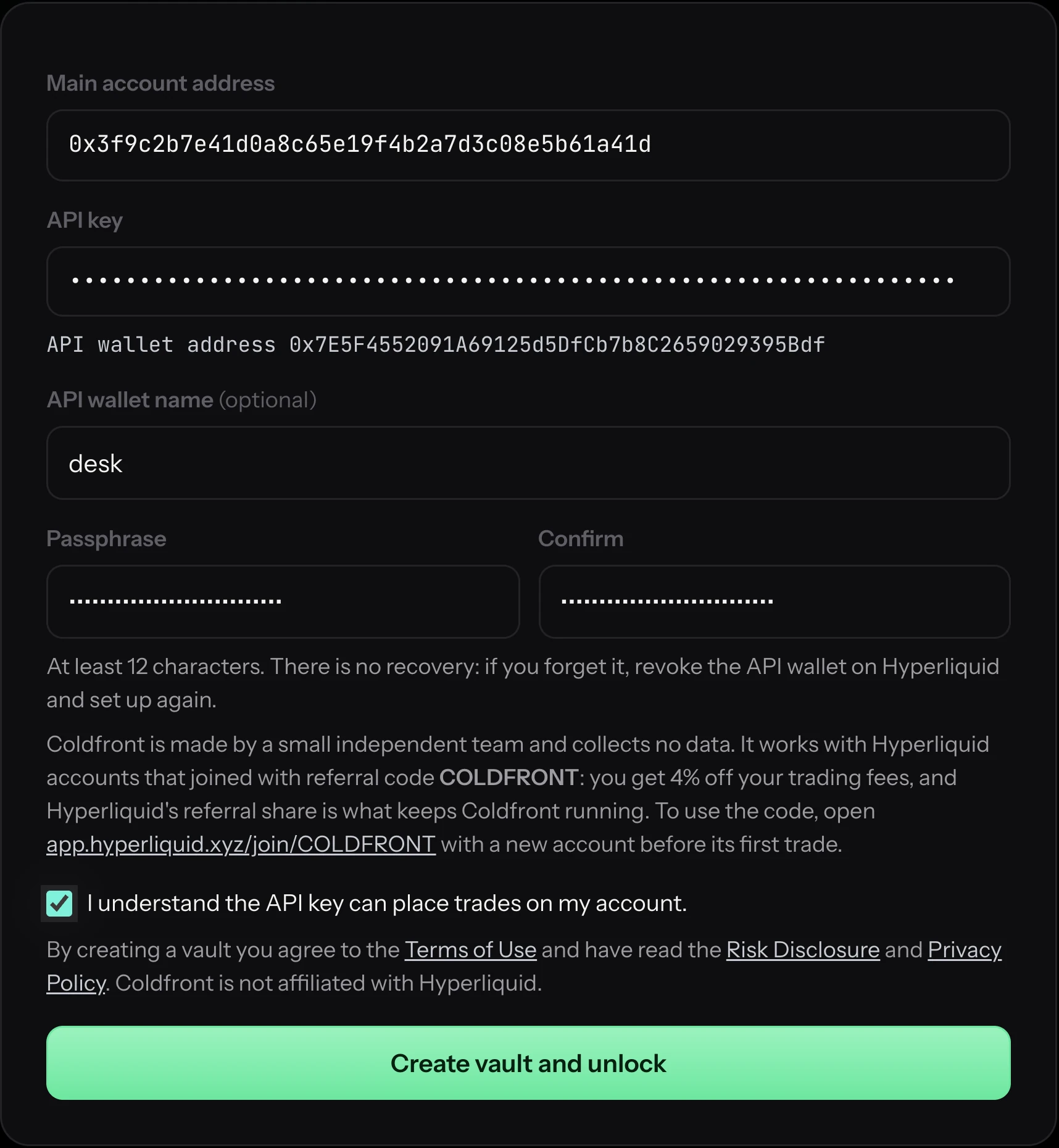
Install Coldfront and open its setup page. Enter your cold wallet's account address, paste the API key and choose a passphrase of at least 12 characters. Coldfront shows the API wallet address it derived from the API key; check it matches the API page. Then disconnect the cold wallet from Hyperliquid and put it away.
Step 3: Trade as usual
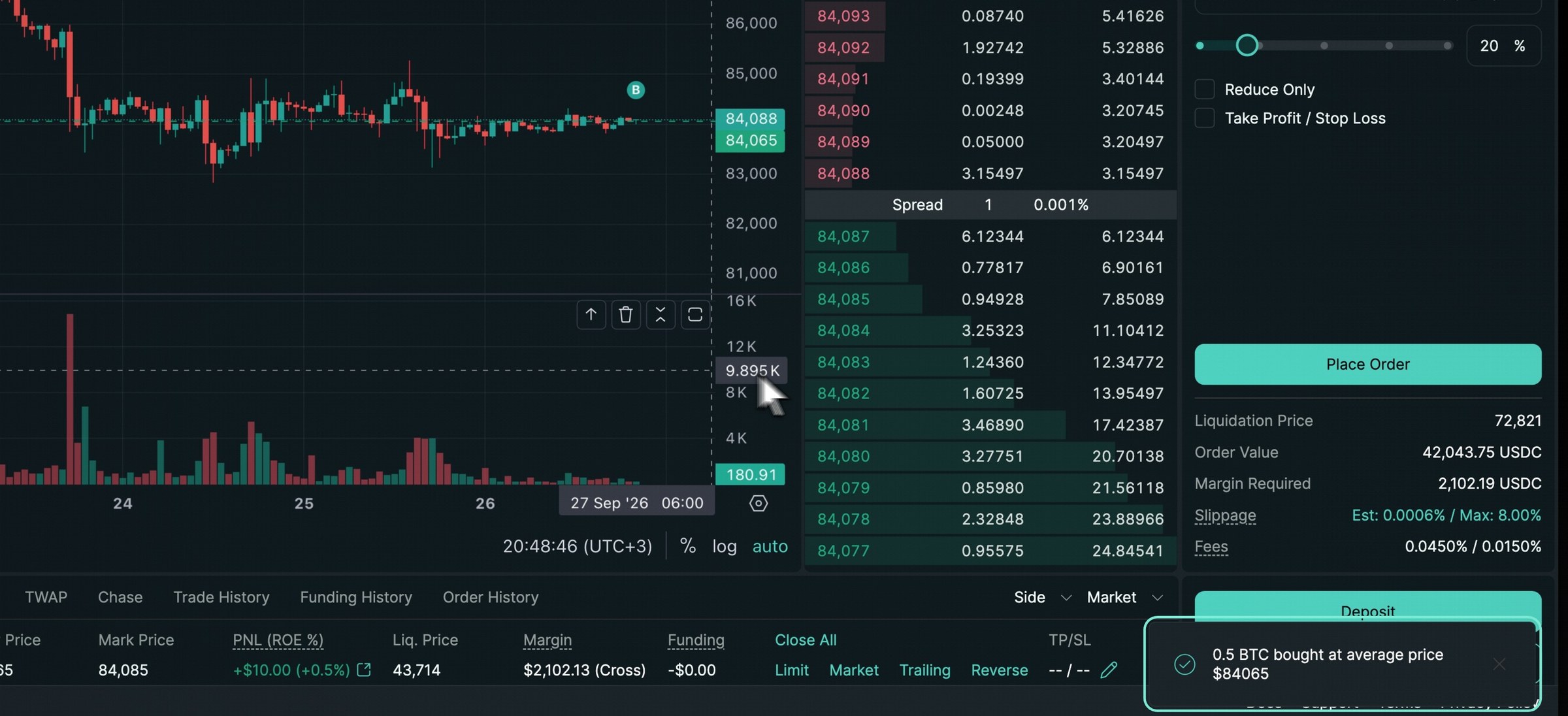
Unlock Coldfront with your passphrase or Touch ID and open Hyperliquid. The official app shows your cold wallet's account and signs orders with the API key. When you are done, press Lock, or let auto-lock do it.
Revoke or rotate the API key
On the API page, remove the API wallet to revoke it immediately. To rotate, authorize a new one with your cold wallet and run Coldfront's setup again. Do this if you think the API key leaked, before it expires, or when you stop using a computer.
What this does not protect against
Malware on your computer while Coldfront is unlocked, a compromised Hyperliquid website, and trades you did not mean to make. See the security page.